Configure a custom backup schedule
NAVIGATION Jobs > Active Jobs > Create Job > Backup
PERMISSIONS Administrator
Use the Custom backup mode to design a week-by-week backup calendar when the standard full, incremental, and differential modes do not provide enough scheduling granularity.
BEFORE YOU BEGIN Review Backup scheduling modes to understand when to use the Custom mode and how it differs from the standard modes.
Configure a custom backup schedule
To configure a custom backup schedule, complete the following steps:
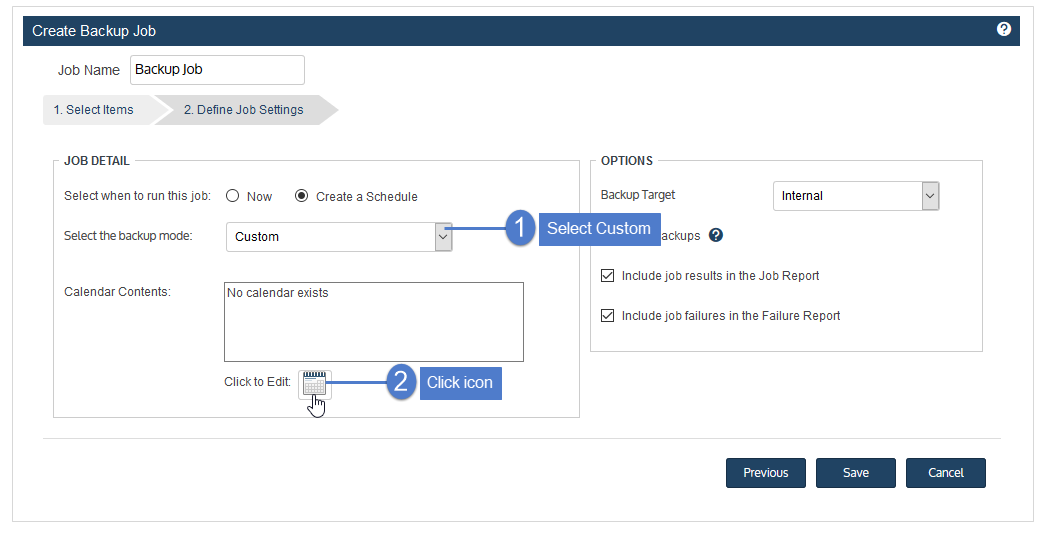
- After adding assets to your backup job, proceed to the Define Job Settings step.
- Select Custom in the Select the backup mode list.
- Click the calendar icon.
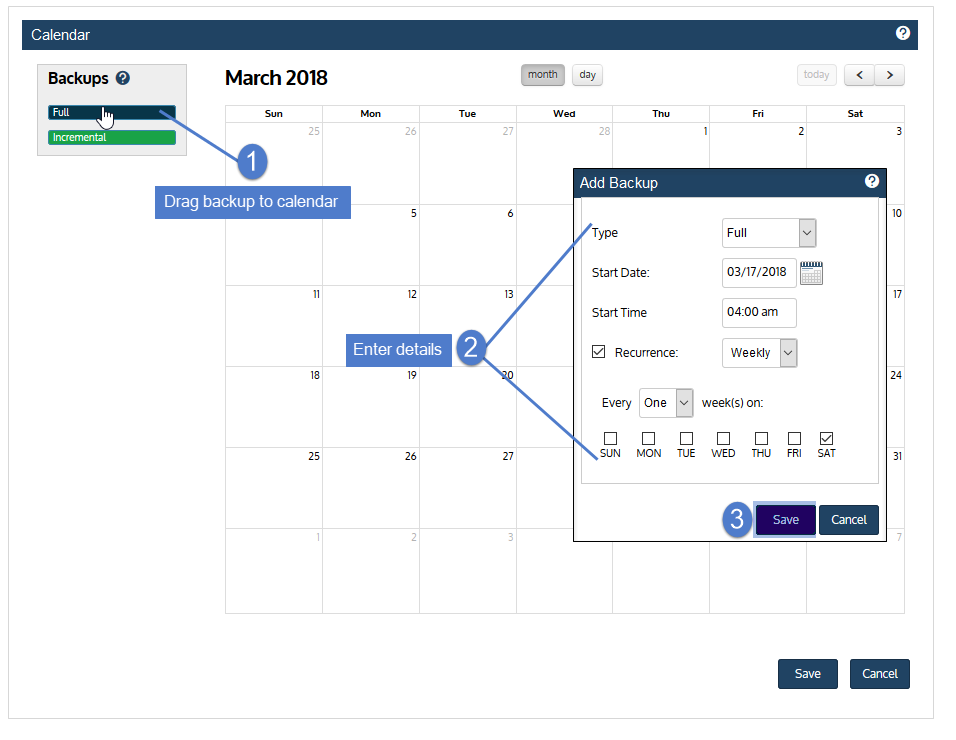
- In the Calendar dialog, select a backup mode in the Backups area and drag it to a day on the calendar.
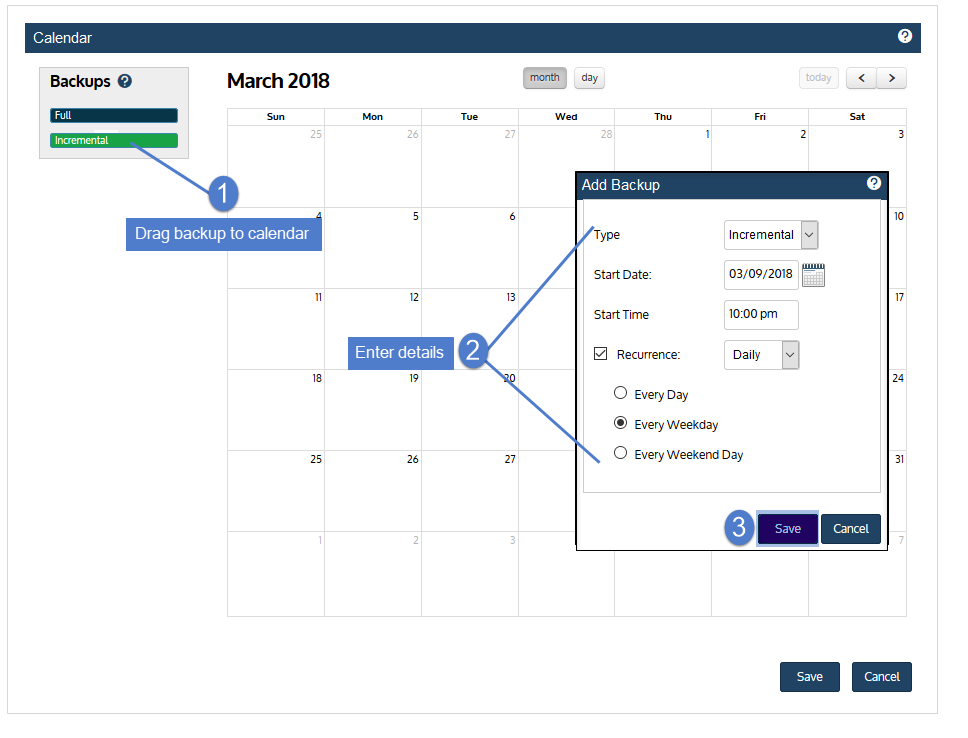
You cannot drag to a day in the past. - In the Add Backup dialog, modify the settings and click Save.
- Repeat steps 4–5 to add other backup modes to additional days on the calendar.
- Click Save to save the settings and close the Calendar dialog.
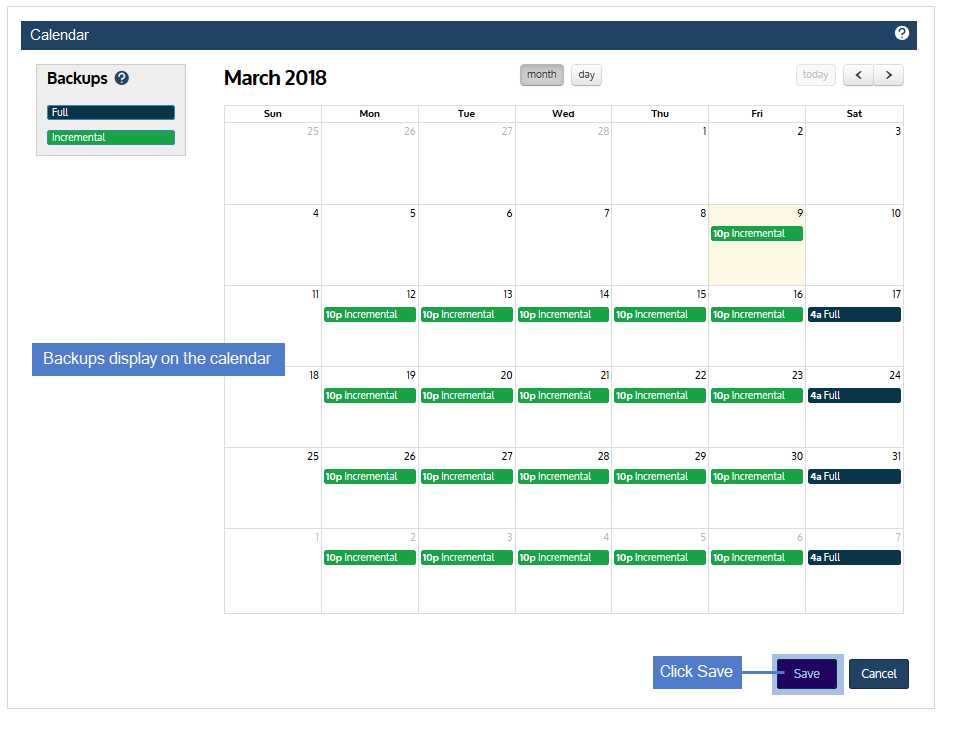
- Click Save to save the schedule.
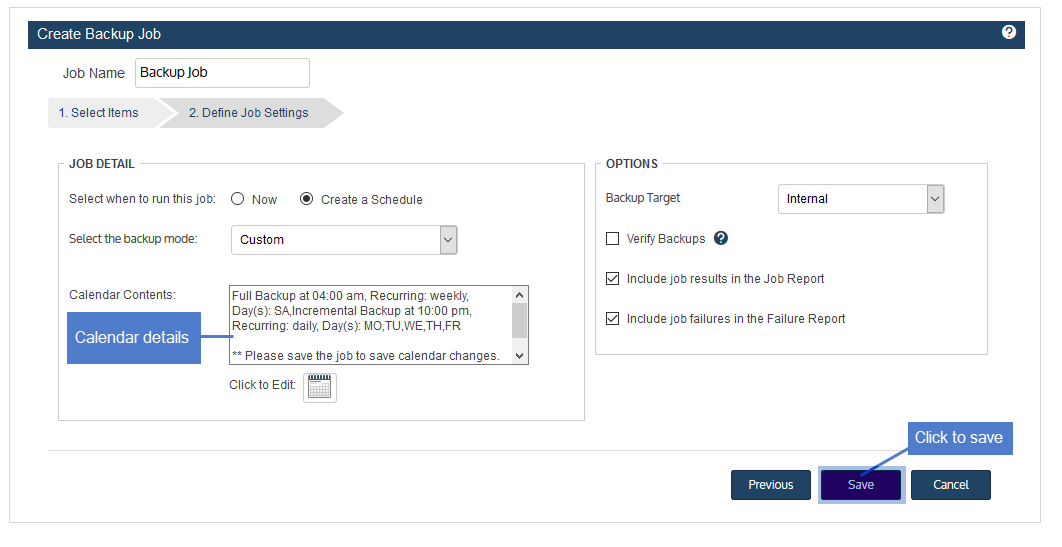
The custom backup calendar is saved.
The job runs according to the pattern you configured, repeating on a rolling weekly basis.


