Activity Center
The Activity Center is a notification panel in the UniView Portal that keeps you informed about events that affect business continuity. Notifications appear automatically when key operations complete, fail, or require your attention, giving you a running record of onboarding results, asset state changes, automatic resource updates, and restore failures.
Key capabilities
- Onboarding status — Displays success, partial success, and error notifications when a tenant onboarding process completes, including a count of assets created and a list of any resources that failed to protect.
- Asset state changes — Notifies you when a protected asset moves to an Unavailable or Deleted state.
- Automatic resource updates — Confirms when new disks or virtual machines are automatically included in or excluded from backup protection.
- Restore failures — Alerts you when a restore operation fails and provides details for follow-up.
- Severity filtering — Lets you filter notifications by severity level so you can focus on the events that matter most.
How it works
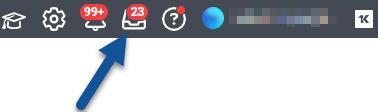
The Activity Center icon in the top menu bar displays a count of unread notifications. Click the icon to open the panel. Each notification includes a severity icon, a summary message, a timestamp, and an expandable Details section.
From the Details section, you can copy notification data to your clipboard or download it as a CSV file. Notifications persist until you dismiss them; they do not disappear after a page refresh.
Because UniView does not update states in real time, you need to refresh the page to see the most current information.
Viewing and managing Activity Center notifications
Use the Activity Center to review notifications, examine event details, filter by severity, and dismiss resolved items.
Procedure
- Click the Activity Center icon in the top menu bar as shown.
- The panel opens and displays your current notifications, with the most recent at the top.
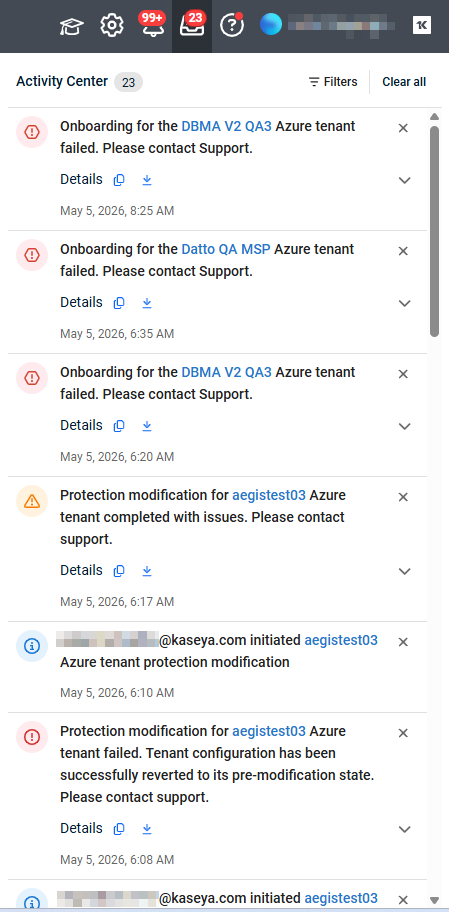
- Review the severity icon next to each notification to assess its priority. Severity levels include Success, Info, Warning, Error, and Critical.
- To view additional details for a notification, click Details.
The section expands to show information such as the initiated-by user, tenant name, tenant ID, organization name, organization ID, total assets created, and any resources that failed to protect.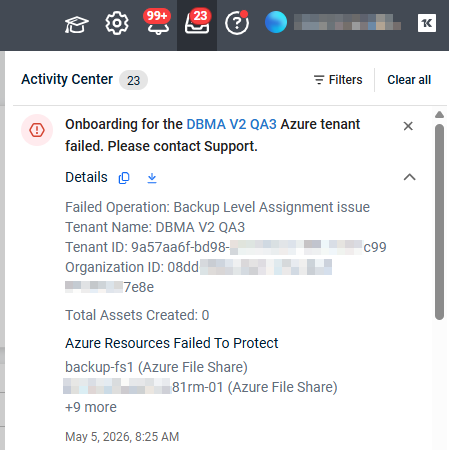
- To copy the notification details to your clipboard, click the Copy icon in the Details section.
- To download the notification details as a Comma Separated Value (CSV) file, click the Download icon in the Details section.
The tooltip for this option reads Download CSV file. The CSV sorts resources by type. - To filter notifications by severity, click Filters in the upper-right corner of the panel. Select one or more severity levels — Success, Info, Warning, Error, or Critical — then click outside the filter panel to apply. To remove the filter, click Clear filter.
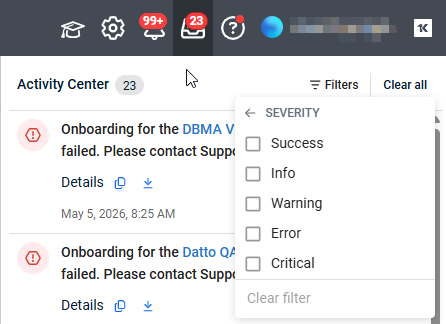
- To dismiss a single notification, click the × icon to the right of the notification.
The notification is removed. - To dismiss all notifications at once, click Clear all in the upper-right corner of the panel.
Result
The Activity Center reflects your changes immediately.
Dismissed notifications are removed from the panel, and any active severity filter limits the displayed notifications to the selected levels.
NOTE NOTE The + N more indicator in an onboarding error or partial success notification is not a link.
To view the full list of resources that failed to protect, use the Download option to export the details as a CSV file.
Notification fields
The following fields appear in the Details section of Activity Center notifications.
Not all fields appear in every notification type.
Fields display only when the relevant data is available.
| Field | Description |
|---|---|
| Initiated By | The name of the person who initiated the operation that triggered the notification. |
| Failed Operation | The name of the operation that did not complete successfully, such as Backup Level Assignment or Policy Assignment. Appears on partial success and error notifications only. |
| Tenant Name | The display name of the tenant associated with the event. |
| Tenant ID | The unique identifier of the tenant associated with the event. |
| Organization Name | The display name of the organization associated with the event. |
| Organization ID | The unique identifier of the organization associated with the event. |
| Total Assets Created | The total number of assets created during an onboarding operation. |
| Virtual Machines | The number of virtual machines created during onboarding. Displays only when the count is greater than zero. |
| File Shares | The number of file shares created during onboarding. Displays only when the count is greater than zero. |
| Issues with Protection Levels | A list of protection-level scopes where assignment failed, shown as the scope name followed by the scope type in parentheses — for example, rg-003-substr (Resource Group). Displays only when issues exist. |
| Resources Failed to Protect | A list of resources that could not be added to backup protection, shown as the resource name followed by the resource type in parentheses. The panel displays up to two resources; if more exist, a + N more indicator appears. Use the Download option to retrieve the full list. |
| Copy icon | Copies all notification details to your clipboard. |
| Download icon | Downloads all notification details as a CSV file. Resources in the CSV are sorted by type. |


