Initialize and erase cold backup copy media
For tape drive, USB, and eSATA devices, you must initialize new tapes or drives before they can be used for the first time. This removes any existing data and formats the media. After you have written data to the media, you can also use this procedure to erase all backup copies.
NOTES
● Use this procedure only if you wish to remove all backup data from the media.
● This procedure is not used for tape devices with autochangers. If your tape device has an autochanger, see Prepare tapes for use with an autochanger device.
To initialize and erase cold backup copy media:
1. Load the tape or drive(s) you want to initialize and erase.
NOTES
If you need to remove a drive from an eSATA or USB dock, be sure to:
● Power down the dock.
● Swap the drive.
● Power on the dock.
2. On the Configure > Appliances page, select your appliance.
3. Click the Backup Copy Targets tab below.
4. Click Scan for Media.
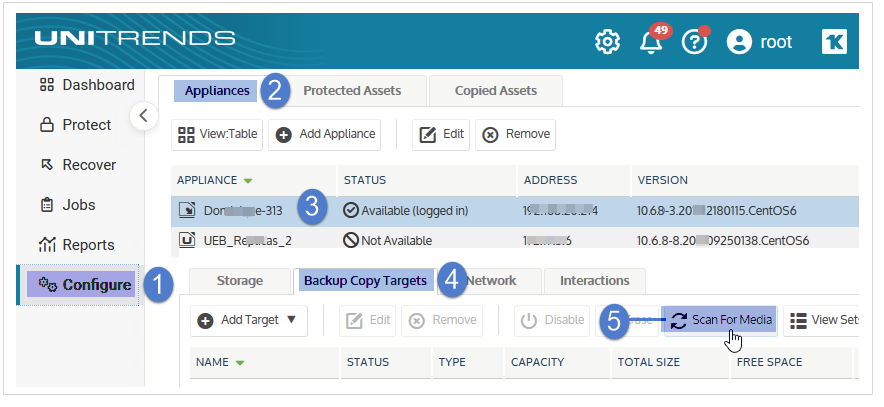
5. Select the target you wish to erase.
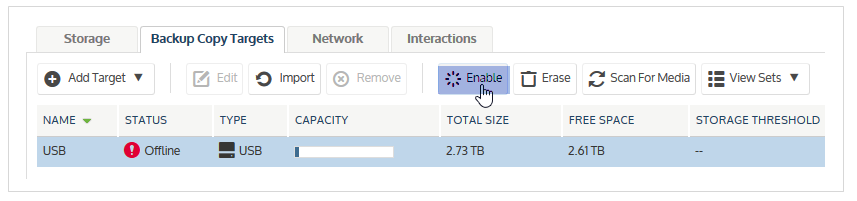
6. (Optional) If you want to check whether there are copies on the media, mount the media by clicking Enable. The target's status changes to Online.
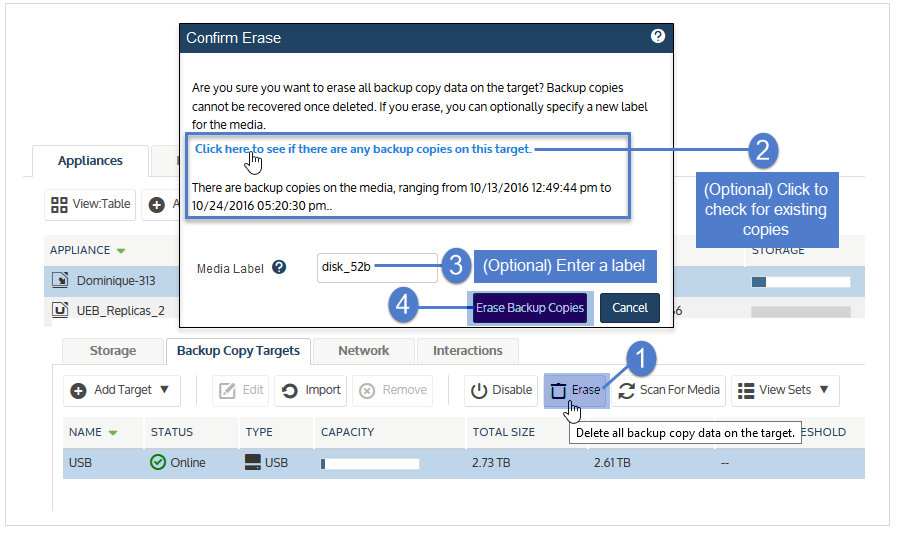
7. Click Erase.
8. (Optional) Check for existing backup copies.
9. (Optional) Enter a Media Label.
● The label can contain up to 12 alphanumeric characters or underscores.
● If you do not enter a label, the appliance generates one for you.
10. Click Erase Backup Copies. The appliance permanently deletes any existing data and formats the media with the Unitrends file system.