UniView 2.112-2 release notes
New features
Asset Details
IMPORTANT Asset Details are only available for Endpoint Backup v2 assets now. Azure assets will have Asset Details later.
The Asset Details panel gives you a summary of a protected asset and a dated history of available recovery points.
Use it to confirm an asset's identity, license, and protection status, check storage usage, and review or download the changes and errors recorded for each backup.
Enhancements
Last 30 backups
IMPORTANT We are working to apply the new backup statuses to backups taken before August 17.
Until that work is complete, disregard those historical status colors.
The Datto Backup Portal Dashboard now shows the last 30 backups instead of all backups from the last 30 days.
This clarifies the meaning of each status bar because each one represents a single backup.
New backup statuses
These new status definitions give more detail about the state of your backups.
| Status | Color | Description |
|---|---|---|
| Successful | Green | 85% or more of the files were backed up. |
| Partially successful | Amber | Fewer than 85% of the files were backed up. The backup is usable, but some files are missing. Read Troubleshooting backup errors for more help. |
| Degraded | Red |
Volume Shadow Copy Service (VSS) failed during the backup. NOTE A degraded backup does not count as a successful backup in Alerts health calculations. |
| Missed, Offline, or No backup scheduled | Grey | No backup ran during the period. The endpoint was offline, the backup was missed, or no schedule applies. |
Last 24 hours backup
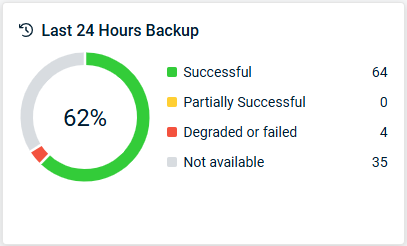
The new status values are shown for your backups over the last 24 hours.
NOTE The number in the center of the circle is the percentage of backups that were successful or partially successful.


