Create a Hyper-V backup job
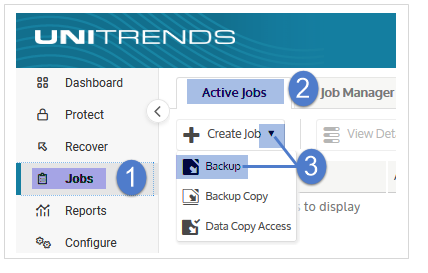
NAVIGATION Jobs > Active Jobs > Create Job > Backup
PERMISSIONS Administrator
Create a Hyper-V backup job to protect one or more virtual machines hosted on a Microsoft Hyper-V server.
Each Hyper-V asset can be assigned to one manually created backup schedule or one SLA policy.
BEFORE YOU BEGIN Review Backup jobs and ensure you have added your Hyper-V server to the Unitrends appliance.
See Managing protected assets for instructions.
Create a Hyper-V backup job
NOTE If you recently added assets to your environment, sync inventory before creating your job: click the Gear icon in the upper-right of the UI and select Inventory Sync.
To create a Hyper-V backup job, complete the following steps:
-
Select Jobs > Active Jobs > Create Job > Backup.
- Select Hyper-V in the What do you want to backup? list.
- In the Inventory tree, expand the Hyper-V server and application, then check boxes to select virtual machines to protect.
Selected VMs display in the Job Inventory Settings area.- To locate an asset by name, use the Search field below.
- To view individual VMs, expand the Hyper-V server and application.
- To quickly select all hosted VMs, click an application checkbox.
- To select one VM, click its checkbox.
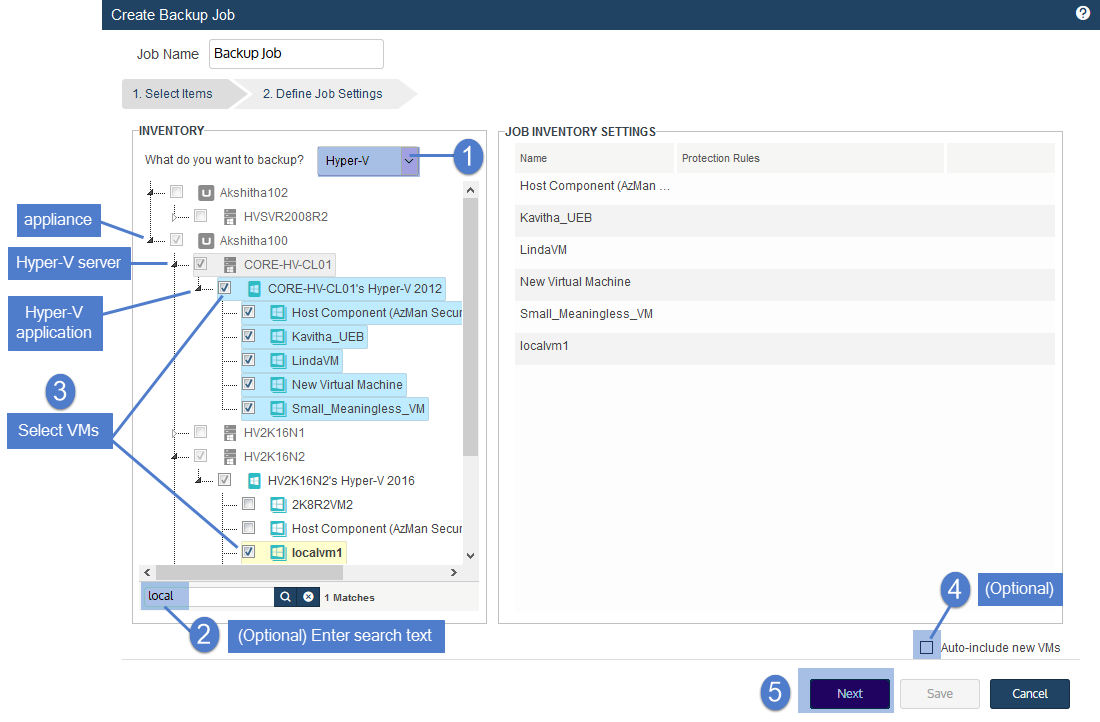
- (Optional) Check the Auto-include new VMs box to automatically add newly discovered VMs to the schedule.
- Click Next.
-
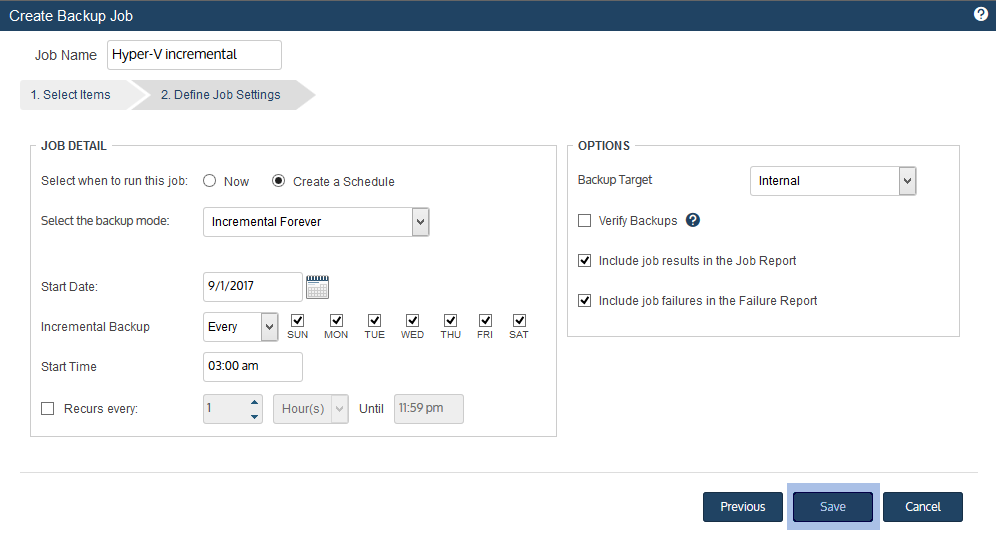
Select Now or Create a Schedule to specify when you want this job to run.
If you create a schedule, enter a unique job name. - Set remaining Job Details and Options.
In most cases, the standard backup modes can be used to create the schedule.
If you need more granularity, choose Custom to create a custom backup calendar.
See Configure a custom backup schedule for details. - Click Save.
-
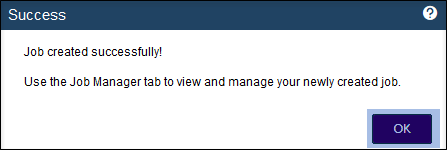
Click OK to close the Success message.
- If you created a schedule, the job runs at the date and times you specified.
- If you chose Now, the job queues immediately.
Click Active Jobs to view the running job.
The Hyper-V backup job is created.
Unitrends protects the selected virtual machines according to the schedule you configured.


