Backup jobs
NAVIGATION Jobs > Active Jobs > Create Job > Backup
PERMISSIONS Administrator
A backup job specifies which assets to protect, when to run, and how to run.
You create backup jobs from Jobs > Active Jobs > Create Job > Backup.
The job wizard guides you through selecting assets, setting a schedule, and choosing backup options.
When you save the job, Unitrends begins protecting assets according to the schedule you configured.
BEFORE YOU BEGIN Ensure you have added your assets to the Unitrends appliance.
See Managing protected assets for instructions.
To understand backup scheduling modes, see Backup scheduling modes.
Backup job notes
Keep the following in mind before creating backup jobs:
- Windows, Linux, VMware, Hyper-V, and AHV assets can be added to manually created backup schedules and SLA policies.
- iSeries assets cannot be added to standard backup schedules. Use the iSeries-specific backup method for these assets.
- Backup jobs run according to appliance local time.
- An asset can be protected by more than one backup schedule.
NOTE Use care when creating multiple schedules for the same asset to avoid overlapping jobs.
Select assets to back up
When you create a backup job, you choose an asset type from the What do you want to backup? list.
The Inventory tree shows the assets of that type registered with the appliance.
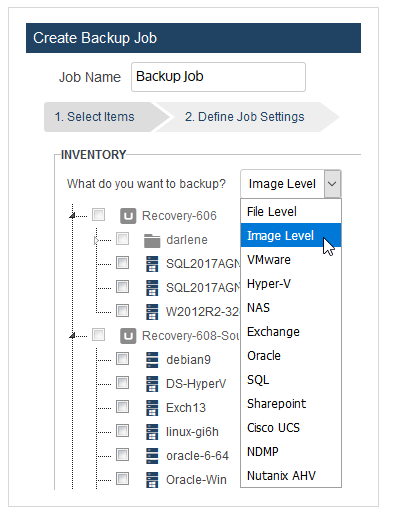
The following table describes each asset type and shows how its inventory tree is organized.
| Asset type | Description | Inventory tree |
|---|---|---|
| File Level | Agent-based file-level backup for Windows and Linux assets. Protects files and directories on the asset. | 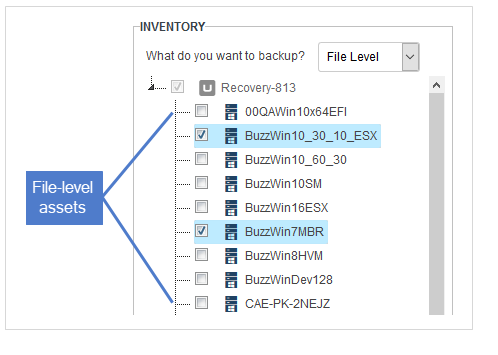
|
| Image Level | Block-level backup for Windows assets. Enables faster recovery and supports application-aware protection. | 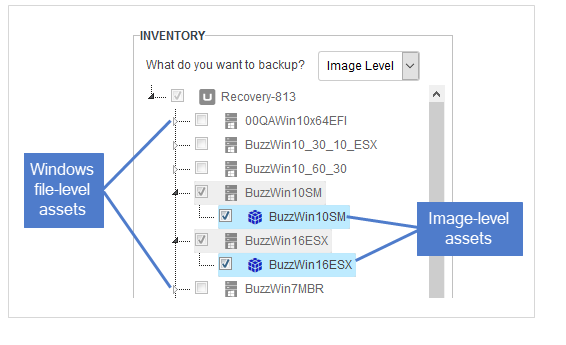
|
| Host Level | Host-based backup for VMware, Hyper-V, and AHV virtual environments. Protects virtual machines at the hypervisor level without an in-guest agent. | 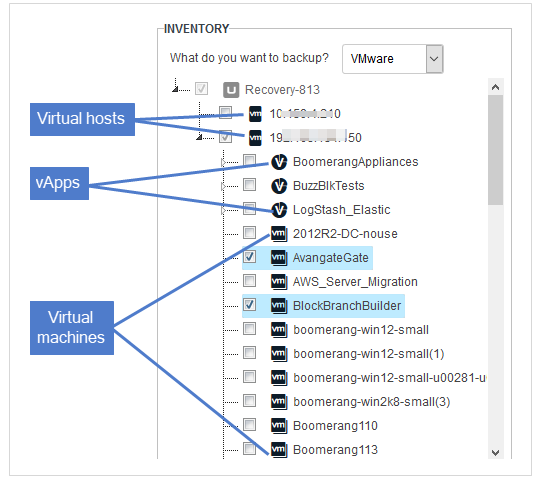 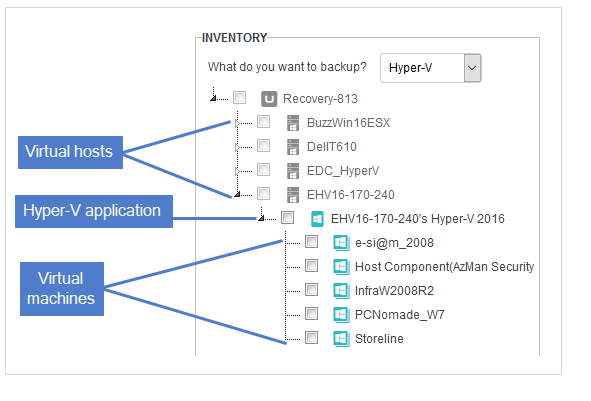
|
| Application | Application-aware backup for Exchange, Oracle, SQL, SharePoint, and Cisco UCS assets. | 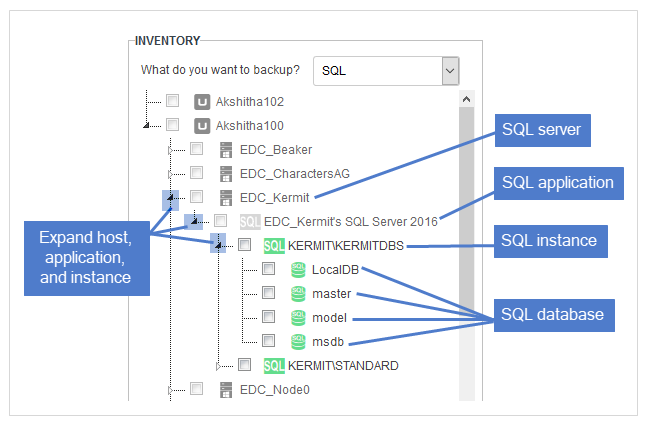
|
| NAS | Network-attached storage backup using CIFS, NFS, or NDMP protocols. | 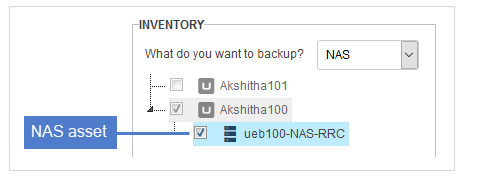
|
How to...
- Create a Nutanix AHV backup job
- Create a UCS service profile backup job
- Configure a custom backup schedule
- Create an Exchange backup job
- Create a Hyper-V backup job
- Create a NAS CIFS or NFS backup job
- Create a NAS NDMP backup job
- Create an Oracle backup job
- Create a SharePoint backup job
- Create a SQL backup job
- Create a VMware backup job
- Create a VMware backup schedule using regex filters
- Create a file-level backup job
- Create a Windows image-level backup job
- Create a XenServer backup job


