Create a Windows image-level backup job
NAVIGATION Jobs > Active Jobs > Create Job > Backup
PERMISSIONS Administrator
Create a Windows image-level backup job to protect Windows assets at the block level.
Image-level backups enable faster recovery and support application-aware protection for hosted applications such as Exchange and SQL.
BEFORE YOU BEGIN Review Backup jobs and Windows image-level backups overview.
Ensure you have added all Windows assets you want to protect to the Unitrends appliance.
See Managing protected assets for instructions.
Create a Windows image-level backup job
NOTE An image-level asset can be assigned to one or more manually created backup schedules or to one SLA policy.
To enable application-aware or indexing features, check the appropriate boxes on the Edit Assets page before running backups.
See To edit an agent-based asset for details.
To create a Windows image-level backup job, complete the following steps:
-
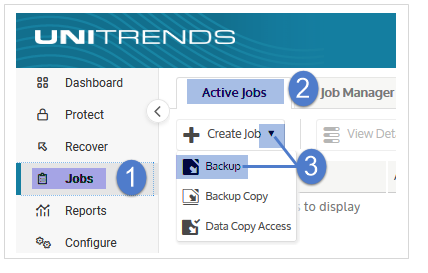
Select Jobs > Active Jobs > Create Job > Backup.
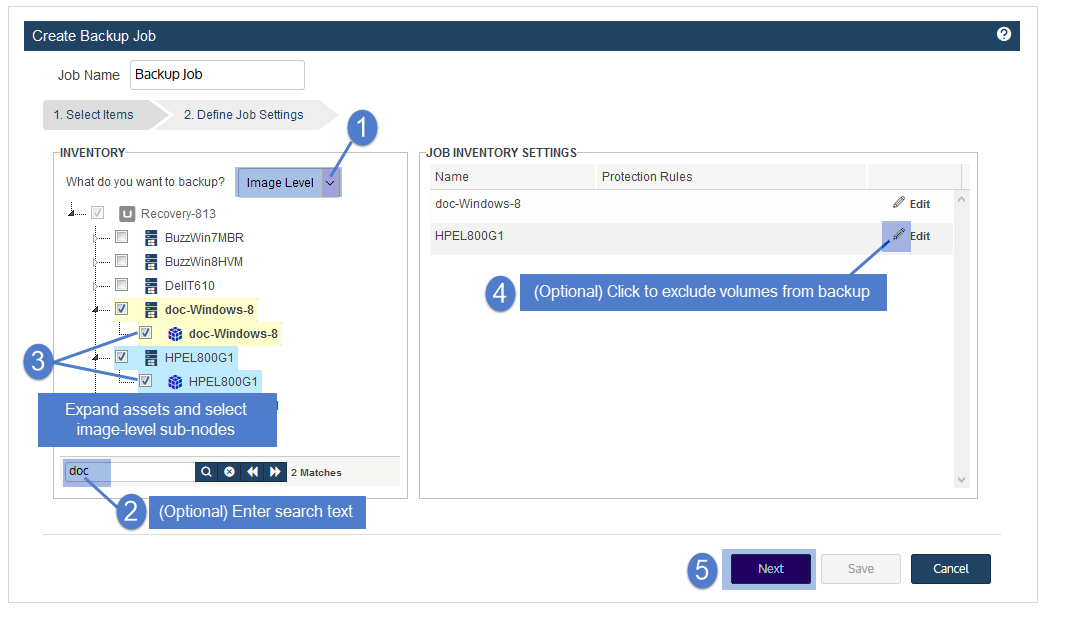
- Select Image Level in the What do you want to backup? list.
- In the Inventory tree, expand assets and check boxes to select the image-level assets you want to protect.
Selected assets display in the Job Inventory Settings area.- Windows assets running agent version 10.3 or higher can be selected.
Other assets are disabled. - To locate an asset by name, use the Search field below.
NOTE If image-level protection is not supported for an asset in the job, the appliance runs a file-level backup instead.
- Windows assets running agent version 10.3 or higher can be selected.
- (Optional) Edit Job Inventory Settings to apply options such as volumes to include or exclude and pre/post-backup commands: locate the asset in the list and click Edit, modify settings, then click Save to retain any changes.
NOTES
● Critical system volumes are required for the image-level replicas feature and to recover the entire asset .
Use care when omitting volumes from backup.● When you recover the entire asset, any existing data on the target is overwritten or deleted.
Volumes on the target disk that were excluded from backup may also be overwritten.
For details, see Windows unified bare metal recovery.● To recover a SQL server, the master, model, and msdb system databases must be present in the image-level backup of the Windows asset. (These are included by default.
If you want the recovered asset to include a hosted SQL application, use care not to exclude these system databases from the image-level backup.)● Image-level protection is not supported for read-only disks.
You must exclude all volumes on read-only disks from the backup job or run file-level backups.
Image-level backups fail if read-only volumes have not been excluded.● Removable media is automatically excluded from image-level backups. (You do not need to exclude volumes on a read-only disk that resides on removable media.)
See the following for details:
Image-level setting
Description
General considerations
Review the following before specifying volumes to include or exclude:
● When creating a schedule, any inclusions or exclusions you add are applied to jobs run by that schedule only.
Inclusions and exclusions are not applied automatically in other cases.● Running an on-demand backup of the asset does not automatically apply any inclusions or exclusions specified in the asset's schedule.
To run an on-demand backup, do one of the following:● Create a one-time job that has the same inclusions and exclusions as in the schedule.
● Manually run the schedule (select the schedule under Jobs > Job Manager and click Run).
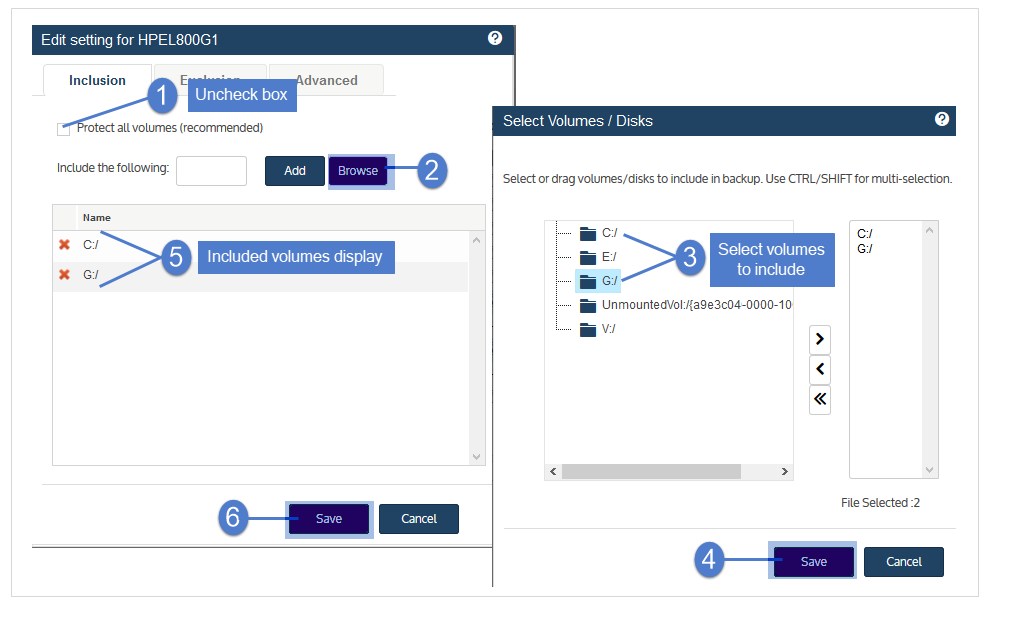
Inclusion tab
Click to specify volumes to include in backups of this asset.
● Any volumes that you do not select here are NOT included in the backup.
● Type in the volume (for example, C:/) or Browse the asset to select volumes to include.
● Run a new full backup upon creating or modifying included volumes.
Inclusion example:
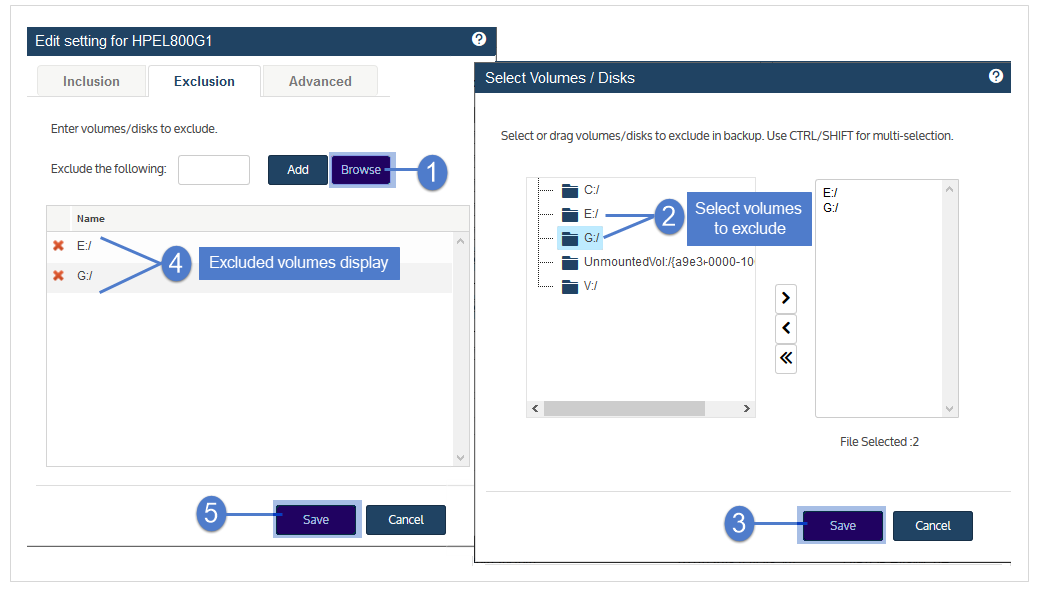
Exclusion tab
Click to specify volumes to exclude from backups of this asset.
● Any volumes that you do not select here are included in the backup.
● Type in the volume (e.g., C:/) or Browse the asset to select volumes to exclude.
● Run a new full backup upon creating or modifying excluded volumes.
Exclusion example:
Advanced tab
Use this tab to specify commands to run before or after the backup job. (Advanced Exclusion options are not supported for image-level backups.) See these rows below for details: Command to run Pre-Backup and Command to run Post-Backup.
Example:
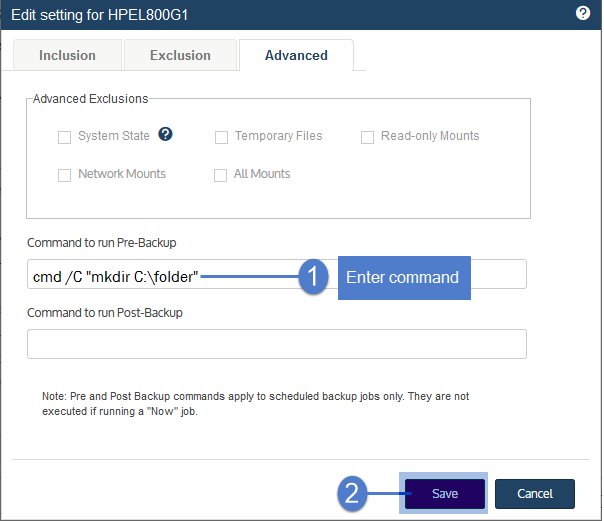
For image-level backup schedules, you cannot enter command syntax as you would inside the Windows Command Prompt.
Instead, you must use this format:
cmd /<argument> "<commandSyntax>"For example: cmd /C "mkdir C:\folder"
To run a command or script on the asset before a scheduled backup starts, enter the command in the Command to run Pre-Backup field.
NOTE Pre-backup commands are used for scheduled jobs only.
These commands are not applied to on-demand jobs (jobs run by selecting the Now option).For image-level backup schedules, you cannot enter command syntax as you would inside the Windows Command Prompt.
Instead, you must use this format:
cmd /<argument> "<commandSyntax>"For example: cmd /C "mkdir C:\folder"
To run a command or script on the asset after a scheduled backup completes, enter the command in the Command to run Post-Backup field.
NOTE Post-backup commands are used for scheduled jobs only.
These commands are not applied to on-demand jobs (jobs run by selecting the Now option). - Click Next.
-
Select Now or Create a Schedule to specify when you want this job to run.
If you create a schedule, enter a unique job name. - Set remaining Job Details and Options, then click Save.
In most cases, the standard backup modes can be used to create the schedule.
If you need more granularity, choose Custom to create a custom backup calendar.
See Configure a custom backup schedule for details.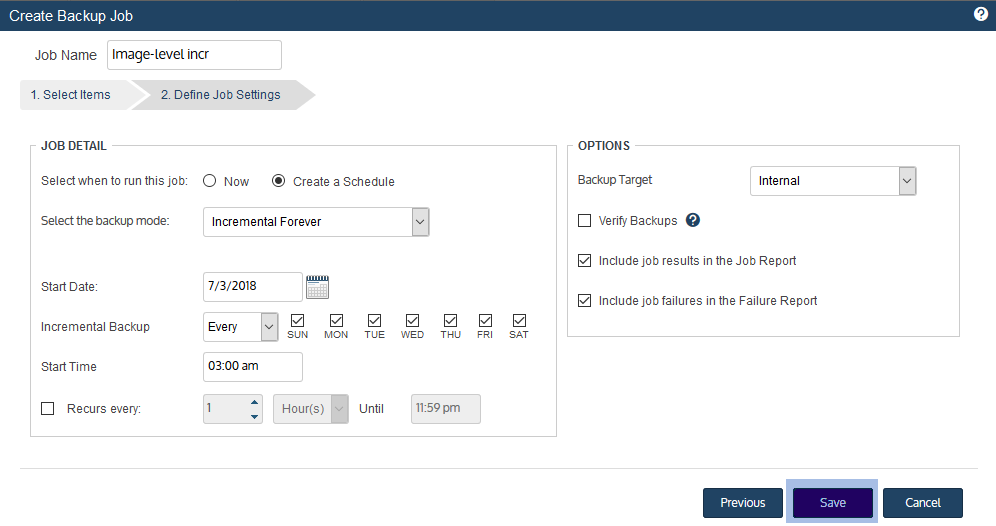
-
Click OK to close the Success message.
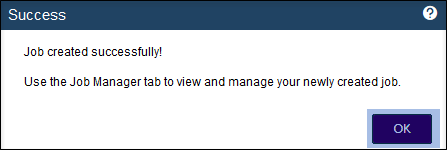
- If you created a schedule, the job runs at the date and times you specified.
- If you chose Now, the job queues immediately.
Click Active Jobs to view the running job.
The image-level backup job is created.
Unitrends protects the selected Windows assets according to the schedule you configured.


