Create a VMware backup job
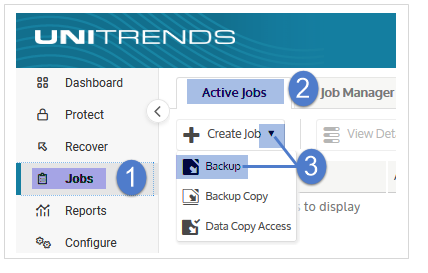
NAVIGATION Jobs > Active Jobs > Create Job > Backup
PERMISSIONS Administrator
Create a VMware backup job to protect one or more virtual machines managed by a VMware vCenter or ESXi host.
Each VMware asset can be assigned to one manually created backup schedule or one SLA policy.
BEFORE YOU BEGIN Review Backup jobs and ensure you have added your VMware host to the Unitrends appliance.
See Managing protected assets for instructions.
Create a VMware backup job
NOTE If you recently added assets to your environment, sync inventory before creating your job: click the Gear icon in the upper-right of the UI and select Inventory Sync.
To create a VMware backup job, complete the following steps:
-
Select Jobs > Active Jobs > Create Job > Backup.
- Select VMware in the What do you want to backup? list.
- In the Inventory tree, expand the virtual host and check boxes to select virtual machines to protect.
Selected VMs display in the Job Inventory Settings area.- To locate an asset by name, use the Search field below.
- To view individual VMs, expand the virtual host and any vApps and resource pools.
- To quickly select multiple VMs, click a virtual host, vApp, or resource pool checkbox.
- To select one VM, click its checkbox.
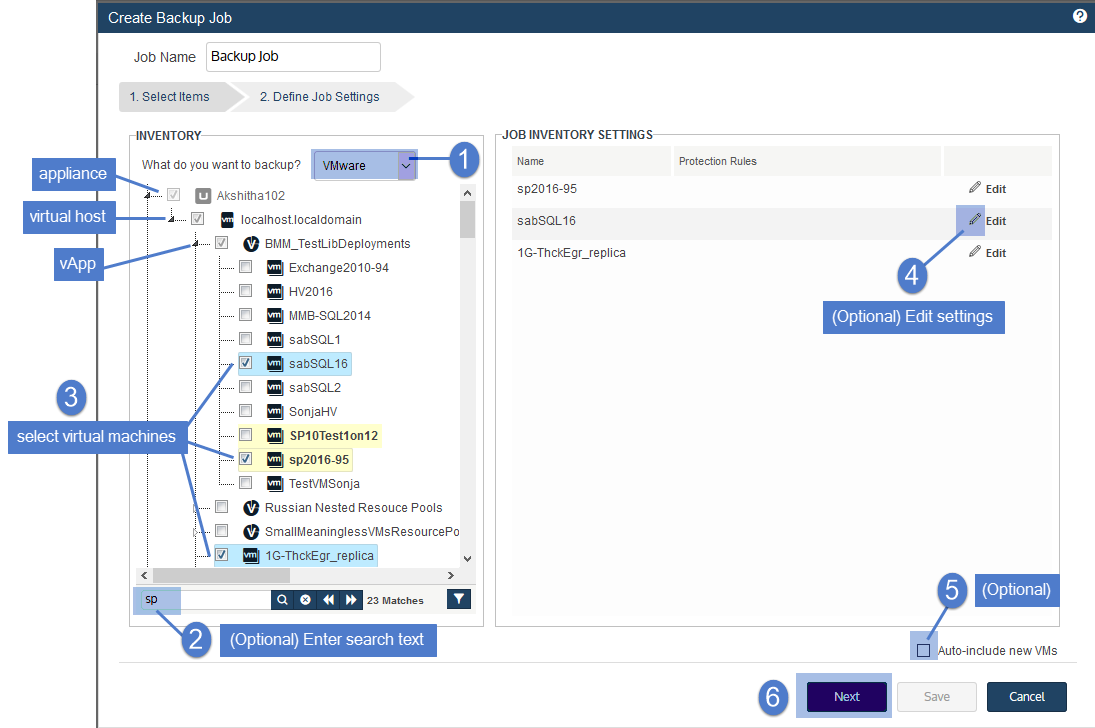
- (Optional) Check the Auto-include new VMs box to automatically add newly discovered VMs to the schedule.
- (Optional) Edit Job Inventory Settings to exclude VM disks from backup:
- Locate the VM in the Job Inventory Settings list.
- Click Edit to specify disks to exclude.
- Click Save to retain any changes.
NOTE Critical system volumes are required to recover the entire virtual machine.
Use care when omitting disks from backup. - Click Next.
-
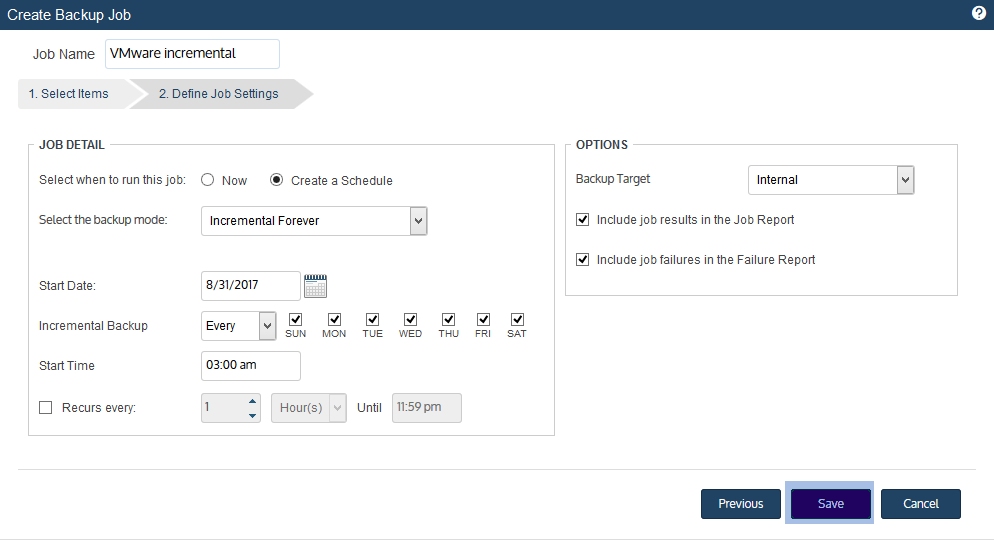
Select Now or Create a Schedule to specify when you want this job to run.
If you create a schedule, enter a unique job name. - Set remaining Job Details and Options.
In most cases, the standard backup modes can be used to create the schedule.
If you need more granularity, choose Custom to create a custom backup calendar.
See Configure a custom backup schedule for details. - Click Save.
-
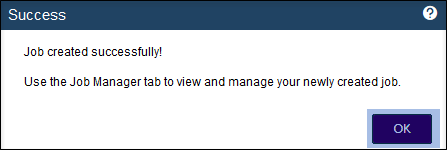
Click OK to close the Success message.
- If you created a schedule, the job runs at the date and times you specified.
- If you chose Now, the job queues immediately.
Click Active Jobs to view the running job.
The VMware backup job is created.
Unitrends protects the selected virtual machines according to the schedule you configured.


