Create a VMware backup schedule using regex filters
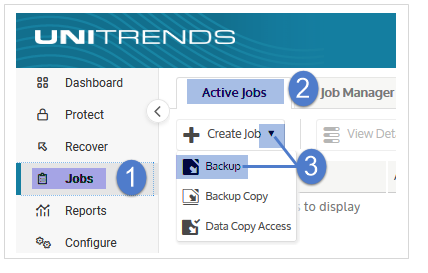
NAVIGATION Jobs > Active Jobs > Create Job > Backup
PERMISSIONS Administrator
Use regular expression (regex) filters to create a VMware backup schedule that automatically adjusts as VMs are added to or removed from your VMware environment.
Filtered schedules are ideal for large virtual environments where manually managing VM lists would be impractical.
BEFORE YOU BEGIN Review Backup jobs and Create a VMware backup job.
Ensure your VMware host is added to the Unitrends appliance.
Regex filters are supported for VMware backup schedules only—not for one-time backups.
About filtered schedules
A filter consists of three elements:
- A name — the VMware container type to search (for example, ESX Servers, vApps, or VM DisplayName).
- A filter string — the text the filter searches for.
- An action — how the filter string is applied to the container list (for example, Equal, Contains, or Starts With).
Keep the following in mind when working with filters:
- Filters are supported for VMware backup schedules only.
They cannot be used for one-time backups. - Filter combinations must be unique to a single schedule.
- Filters are logical AND statements; OR statements are not supported.
- Filtered schedules are updated each hour.
Beginning in release 10.1, this yields better performance for large VM environments.
Backup failures caused by a deleted VM not yet detected by the schedule, or runs that miss a newly added VM, will resolve within one hour.
Create a VMware backup schedule using regex filters
NOTE If you recently added assets to your environment, sync inventory before creating your job: click the Gear icon in the upper-right of the UI and select Inventory Sync.
To create a VMware backup schedule using regex filters, complete the following steps:
-
Select Jobs > Active Jobs > Create Job > Backup.
- Select VMware in the What do you want to backup? list.
- Click to select a virtual host in the Inventory tree.
- Click the filter icon below the Inventory tree.
- Add the filter:
- In the Enter name list, select a VMware container type.
- In the Enter action list, select an action.
- In the Filter field, enter a text string.
- Click the checkmark to apply.
NOTE Filter actions for resource pools, vApps, and folders apply to all containers that meet the filter criteria and to any sub-containers.
For example, the filter Resource Pools Equal Nested Resource Pools applies to all VMs in those resource pools and any nested sub-pools.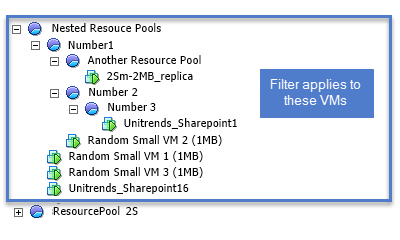
VMs meeting the filter criteria display in the Job Inventory Settings list.
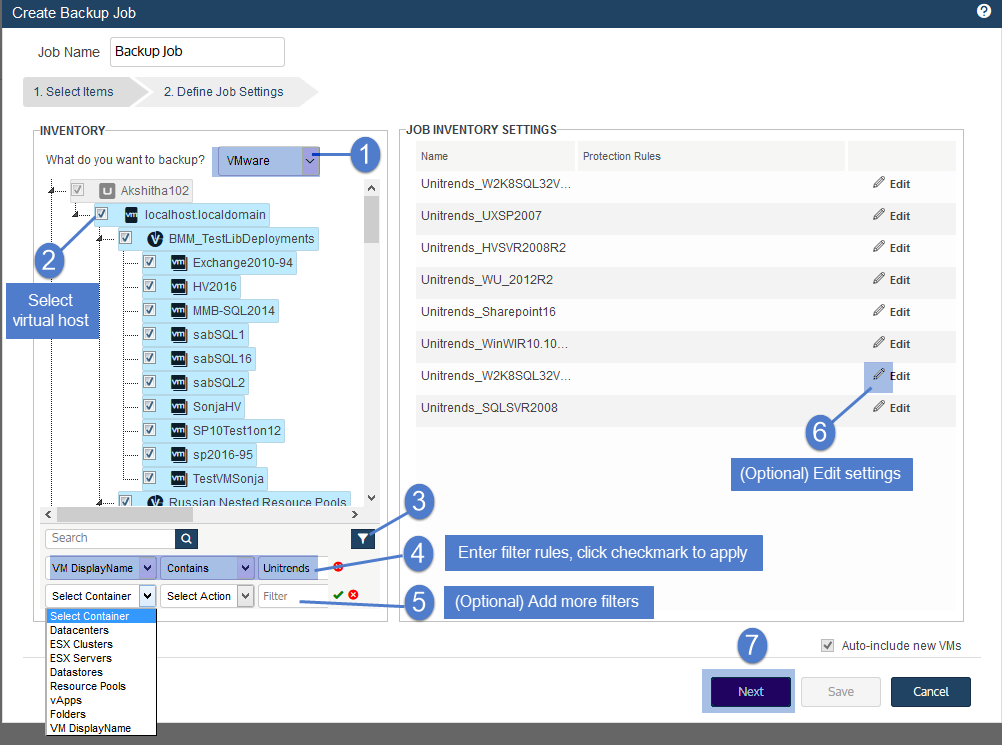
- (Optional) Add more filters as needed to narrow the VM list.
- (Optional) Edit Job Inventory Settings to exclude VM disks from backup:
- Locate the VM in the Job Inventory Settings list.
- Click Edit to specify disks to exclude.
- Click Save to retain any changes.
NOTE Critical system volumes are required to recover the entire virtual machine.
Use care when omitting disks from backup. - Click Next.
- Enter a unique Job Name and select Create a Schedule.
- Set remaining Job Details and Options.
In most cases, the standard backup modes can be used to create the schedule.
If you need more granularity, choose Custom to create a custom backup calendar.
See Configure a custom backup schedule for details. - Click Save.
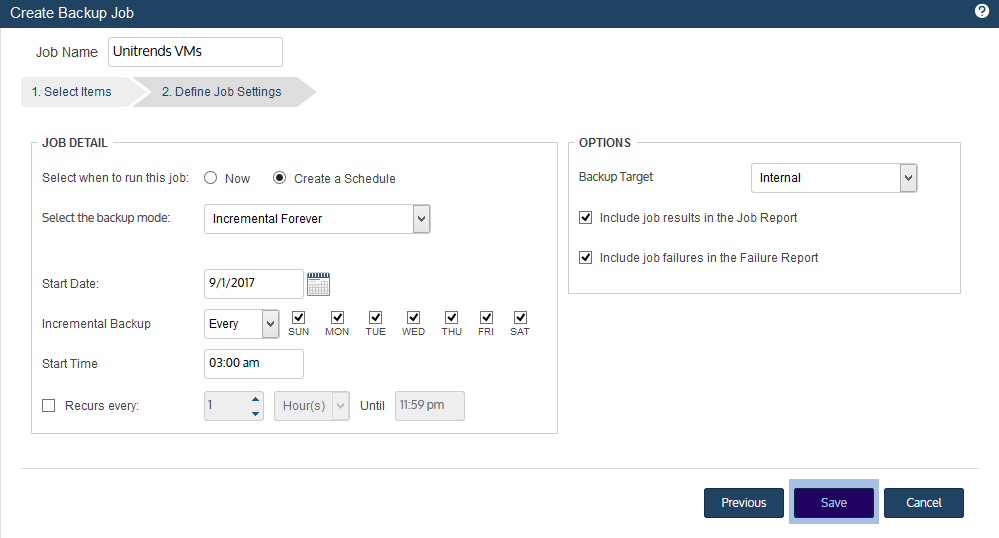
The filtered VMware backup schedule is created.
Unitrends automatically adds VMs that match the filter criteria and removes VMs that no longer match, updating the schedule each hour.


